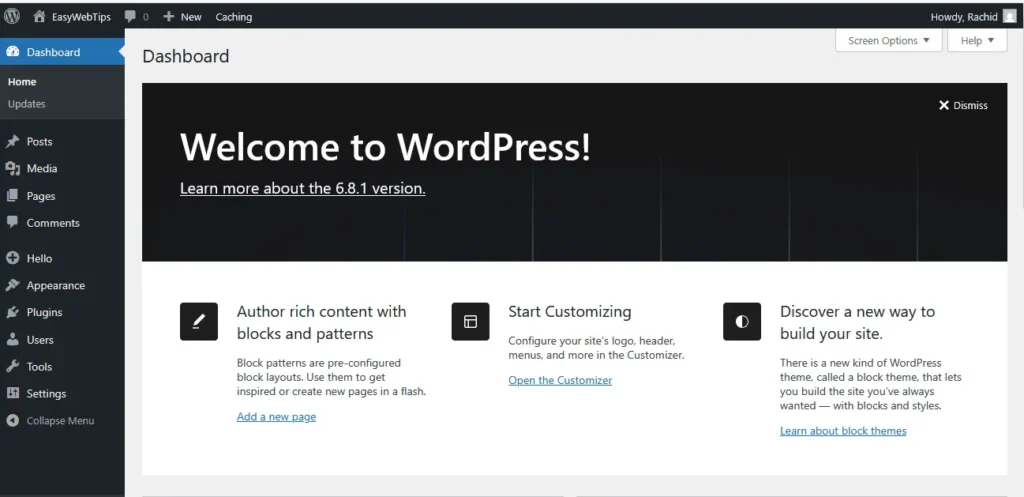
Starting with WordPress can feel like stepping into a whole new world. One minute you’re excited to launch your website — coffee in hand, big ideas in mind — and the next, you’re staring at the WordPress dashboard wondering if you accidentally opened a flight simulator.
Don’t worry, you’re not alone.
WordPress is powerful, flexible, and yes — a little intimidating at first. But the good news? It’s designed for beginners and trusted by millions. In fact, it powers more than 40% of all websites online. If they can do it, so can you.
Whether you’re building a personal blog, launching a business website, or just wanting to share your grandmother’s secret cookie recipes with the world, this guide will walk you through everything you need to know to get started with WordPress without pulling your hair out.
Getting Your WordPress Foundation Right
How Do I Start a WordPress Blog or Website?
Starting your WordPress journey is like building a house – you need a solid foundation before you can worry about the pretty curtains. Here’s your step-by-step roadmap:
Step 1: Choose Your Hosting Provider
Your hosting provider is like the land where your website lives. There are a lot of recommendations, but you can start with something famous and inexpensive for you as a beginner. You can choose for ex: Bluehost , Hostinger, or SiteGround – they all offer one-click WordPress installation that’s so simple, even my technologically-challenged uncle can install it on his first try.
For this website, it is hosted on Bluehost. It is particularly beginner-friendly because they literally hold your hand through the entire process. Their customer support team has the patience of saints, which you’ll appreciate when you inevitably call them asking why your website looks different on your phone (mobile responsiveness – we’ll get to that).
Step 2: Install WordPress
Most hosting providers now offer one-click WordPress installation. It’s like having IKEA furniture that actually assembles itself. Click the button, wait a few minutes, and boom – you have WordPress installed.
Step 3: Choose Your Domain Name
Your domain name is your website’s address on the internet. Make it memorable, easy to spell, and relevant to your content. Avoid numbers and hyphens if possible – they’re like speed bumps in conversation when you’re telling people your website address.
How Much Does It Cost to Build a WordPress Website?
Let’s talk money – because I know you’re wondering if this is going to cost you a kidney.
Here’s a realistic breakdown of WordPress costs for beginners:
Essential Component | Cost Range | My Recommendation |
Hosting | $3-15/month | Start with shared hosting ($5-8/month) |
Domain Name | $10-15/year | Usually included free with hosting |
Theme | $0-100 | Start with a free theme like Astra |
Essential Plugins | $0-200/year | Mix of free and premium |
Total Year 1 | $50-400 | Budget around $100-150 |
The beauty of WordPress is that you can start small and scale up. You can start with something like a $60/year for hosting plan and a free theme, then gradually invest in premium plugins as your site grows and starts making money.
Setting Up Your WordPress Website Like a Pro
How Do I Install and Activate a WordPress Theme?
Think of WordPress themes like outfits for your website. You wouldn’t wear a tuxedo to the beach, right? Similarly, choose a theme that matches your website’s purpose.
Installing a Free Theme:
- Go to Appearance > Themes in your WordPress dashboard
- Click Add New
- Browse or search for themes (You can start with Free themes like Astra – it’s like the perfect white t-shirt of WordPress themes)
- Click Install then Activate
Installing a Premium Theme:
If you’ve purchased a premium theme like Divi, you’ll upload the theme file:
- Go to Appearance > Themes
- Click Add New > Upload Theme
- Choose your theme file and click Install Now
Here’s a pro tip I learned the hard way: before switching themes, check how your content looks. Some themes display content differently, and you might need to adjust your layouts.

How Do I Add My First Blog Post or Page in WordPress?
Creating your first content in WordPress is like writing your first diary entry – exciting but slightly nerve-wracking. Here’s how to do it without breaking anything:
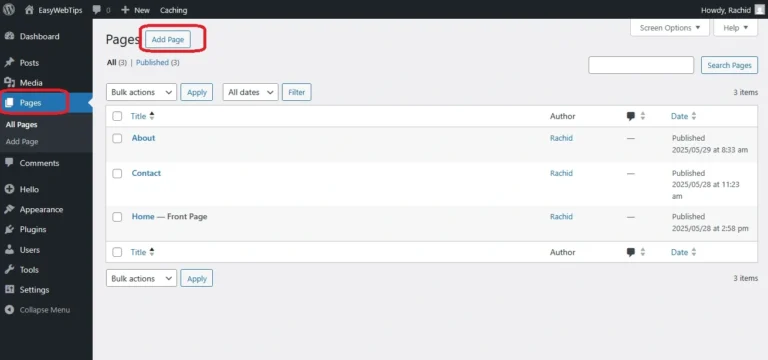
Creating Your First Page:
Pages are for static content like “About Us” or “Contact.” They’re the foundation rooms of your website house.
- Go to Pages > Add New
- Add your title
- Write your content in the editor
- Hit Publish when you’re ready
Creating Your First Blog Post:
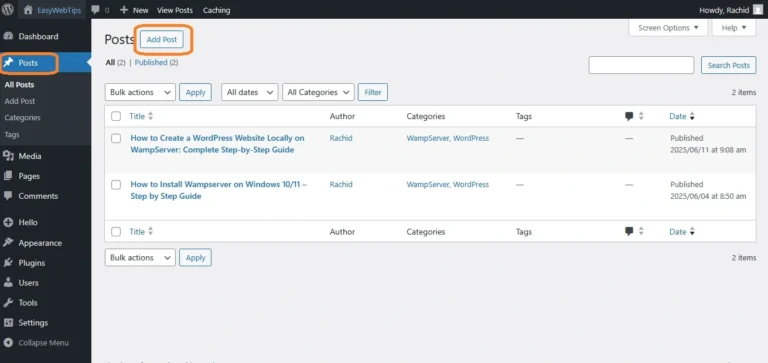
Posts are for dynamic content – your regular updates, articles, and musings.
- Navigate to Posts > Add New
- Craft an engaging title
- Write your content
- Add categories and tags
- Set a featured image
- Click Publish
Remember: you can always save as draft and come back to it later. WordPress autosaves every few seconds, so you won’t lose your work if your cat walks across your keyboard (speaking from experience).
Essential WordPress Plugins Every Beginner Needs
How Do I Install and Use Plugins in WordPress?
Plugins are like apps for your WordPress site. They add functionality without requiring you to become a coding wizard overnight.
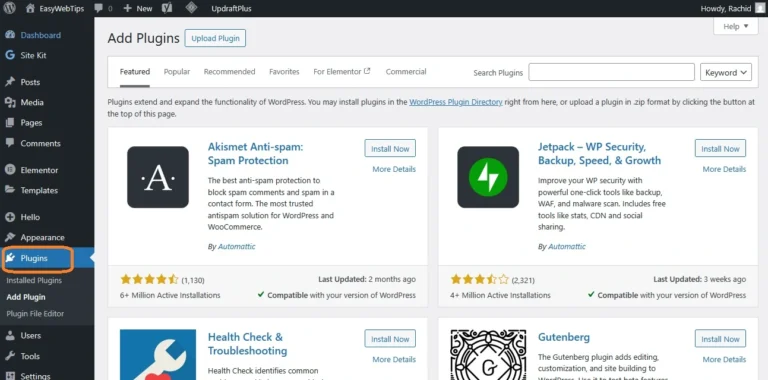
Installing Plugins:
- Go to Plugins > Add New
- Search for the plugin you want
- Click Install Now
- Click Activate
My Essential Plugin Starter Pack:
- Admin and Site Enhancements (ASE): For website enhancements like Content Order, Hiding Admin Notices, Organizing Admin Menu…
- Yoast SEO: Your SEO coach that won’t judge you for not knowing what meta descriptions are
- WPForms: For contact forms that actually work
- UpdraftPlus: Because backing up your site is like wearing a seatbelt – you hope you never need it, but you’ll be glad it’s there
- Jetpack: It’s like a Swiss Army knife for WordPress
- Smush: Optimizes your images so they don’t slow down your site
What Are the Essential Plugins Every WordPress Beginner Should Install?
Let me share the plugins that have saved my bacon more times than I can count:
Security & Backup:
- Akismet Anti-Spam: Keeps spam comments from taking over your site
- UpdraftPlus: Will save you from a nightmare when things go wrong and need to restore your website to look how it was before the recent wrong change or update.
SEO & Performance:
- Yoast SEO, All in One SEO, or Rank Math SEO: All are excellent for SEO beginners
- LiteSpeed Cache, W3 Total Cache or WP Rocket: Makes your site load faster
Functionality:
- Elementor: Drag-and-drop page builder for design flexibility
- Admin and Site Enhancements (ASE)
- Site Kit by Google
Start with these, then add more as you identify specific needs. Installing 47 plugins on day one is like buying every kitchen gadget ever made – you’ll be overwhelmed and your site will be slow.
Customizing Your WordPress Website Without Coding
How Do I Customize My WordPress Website Without Coding?
Here’s where WordPress really shines for beginners. You can create a professional-looking website without touching a single line of code.
Using the WordPress Customizer:
- Go to Appearance > Customize
- Make changes in real-time
- Preview how they look
- Click Publish when satisfied
Key Customization Areas:
- Site Identity: Logo, site title, tagline
- Colors: Brand colors throughout your site
- Menus: Navigation structure
- Widgets: Sidebar and footer content
- Homepage Settings: What visitors see first
Page Builders for Beginners:
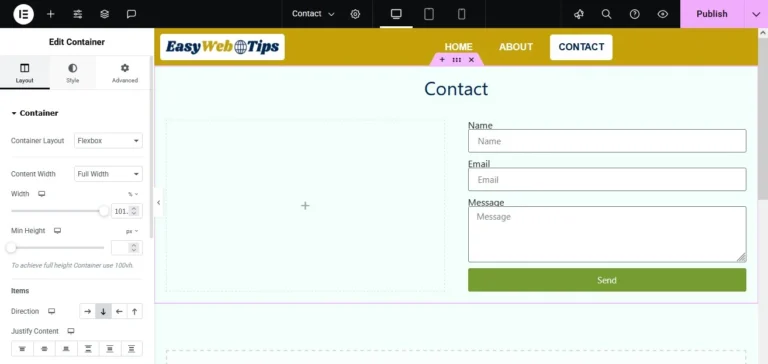
Elementor is like having a professional web designer’s toolbox without needing the degree. It’s drag-and-drop interface lets you create custom layouts by simply moving elements around.
The Divi Builder is another excellent option that comes with pre-made layouts you can customize to match your brand.
How to Add Navigation Menus in WordPress
Navigation menus are like road signs for your website – they help visitors find what they’re looking for without getting lost.
Creating Your First Menu:
- Go to Appearance > Menus
- Create a new menu and give it a name
- Add pages, posts, or custom links
- Arrange them in logical order
- Assign the menu to a location (usually “Primary Menu”)
Menu Best Practices:
- Keep it simple – 5-7 main items maximum
- Use clear, descriptive labels
- Organize logically (most important items first)
- Include a “Contact” or “About” page
Performance and Security Essentials
How Do I Improve the Speed of My WordPress Website?
A slow website is like a store with a door that takes 30 seconds to open – people will leave before they even see what you’re selling.
Speed Optimization Checklist:
- Choose Quality Hosting: Cheap hosting often means slow loading times
- Optimize Images: Try to upload your images in WebP format and Use plugins that compress images without losing quality like Smush
- Install Caching: W3 Total Cache or WP Rocket create faster-loading versions of your pages
- Minimize Plugins: Deactivate plugins you don’t actively use
- Keep WordPress Updated: Updates often include performance improvements
Quick Speed Test:
Use tools like GTmetrix or Google PageSpeed Insights to check your site speed.
How Do I Secure My WordPress Site from Hackers?
Security might seem scary, but it’s mostly about good habits and the right tools.
Essential Security Steps:
- Use Strong Passwords: Mix of letters, numbers, and symbols
- Keep Everything Updated: WordPress core, themes, and plugins
- Install Security Plugins: Jetpack includes basic security features
- Regular Backups: UpdraftPlus can save your site if something goes wrong
- Limit Login Attempts: Prevents brute force attacks
Two-Factor Authentication:
SEO and Content Creation for Beginners
How Do I Optimize My WordPress Website for SEO?
SEO (Search Engine Optimization) is how you help Google understand what your website is about so it can show it to the right people.
WordPress Beginner SEO Checklist:
- Install Yoast SEO: It provides real-time suggestions as you write
- Research Keywords: Use tools like Google Keyword Planner or Ubersuggest
- Write Quality Content: Google rewards helpful, original content
- Optimize Images: Add alt text and descriptive filenames
- Create Internal Links: Link to other relevant content on your site
Content Creation Tips:
- Write for humans first, search engines second
- Use headings to organize your content
- Include images to break up text
- Answer questions your audience is asking
WordPress Beginner Content Creation Tips
Creating content that people actually want to read is both an art and a science. Here’s what I’ve learned:
Planning Your Content:
- Know Your Audience: Who are you writing for?
- Solve Problems: Every piece of content should help someone
- Be Consistent: Regular posting beats sporadic bursts
- Mix Content Types: Blog posts, pages, images, videos
Writing Engaging Content:
- Start with compelling headlines
- Use short paragraphs (like this guide)
- Include personal experiences and examples
- End with calls-to-action
Troubleshooting Common WordPress Issues
WordPress Beginner Mistakes to Avoid
Let me save you from the mistakes I made (and the 3 AM panic attacks that followed):
Common Beginner Mistakes:
- Not Backing Up Regularly: I learned this lesson when I made some changes and my site went down. I could not know what went wrong and could not fix the issue. I wished I had a backup.
- Installing Too Many Plugins: More isn’t always better
- Ignoring Updates: Security vulnerabilities are real
- Forgetting Mobile Optimization: Over 50% of web traffic is mobile
- Not Using Analytics: You can’t improve what you don’t measure
WordPress Beginner Troubleshooting Tips:
- White Screen of Death: Usually caused by plugin conflicts – deactivate plugins one by one
- Site Loading Slowly: Check your images and plugins
- Can’t Access Admin: Try resetting your password or contacting hosting support
- Plugin Conflicts: Deactivate all plugins, then reactivate one by one to find the culprit
Taking Your WordPress Skills to the Next Level
Advanced Features for Growing Confidence
Once you’re comfortable with the basics, here are some intermediate features to explore:
Custom Post Types: Beyond just posts and pages, you can create portfolios, testimonials, or product showcases.
Child Themes: Protect your customizations when themes update.
WordPress Multisite: Manage multiple websites from one dashboard.
E-commerce Integration: Add WooCommerce to sell products or services.
Building Your WordPress Community
WordPress has an amazing community of users, developers, and enthusiasts. Join local WordPress meetups, participate in online forums, and don’t be afraid to ask questions. The WordPress community is known for being welcoming to beginners.
Recommended Learning Resources:
- WordPress.org Documentation
- WP Beginner blog
- WordPress TV (free video tutorials)
- Local WordPress meetups
- WordPress Facebook groups
Your WordPress Journey Starts Now
Building a website with WordPress is like learning to drive – intimidating at first, but incredibly empowering once you get the hang of it. You don’t need to master everything at once. Start with the basics, get comfortable, then gradually expand your skills.
Remember, every WordPress expert was once a beginner who felt overwhelmed by the dashboard. The difference between those who succeed and those who give up isn’t talent or technical knowledge – it’s persistence and willingness to learn from mistakes.
Your website is waiting to be built. It’s going to be a reflection of your ideas, your business, or your passion. And the best part? You have all the tools you need to make it happen.
Ready to Start Your WordPress Journey?
- Choose your hosting provider (I recommend starting with Bluehost, Hostinger or SiteGround)
- Install WordPress with one click
- Pick a beginner-friendly theme like Astra
- Install the essential plugins mentioned in this guide
- Create your first page or post
- Share your creation with the world
WordPress isn’t just a platform – it’s your gateway to having a voice on the internet. Whether you’re sharing your expertise, building a business, or connecting with like-minded people, WordPress gives you the foundation to make it happen.
What are you waiting for? Your WordPress adventure starts with a single click. Go build something amazing.
Have questions about getting started with WordPress? Drop a comment below and I’ll help you troubleshoot any challenges you’re facing. Remember, every expert was once a beginner – you’ve got this!