You’ve just launched your new WordPress website, and you’re staring at it like a proud parent. But then reality hits – your site feels a bit… naked. Like a smartphone without apps, or a kitchen without utensils. That’s where WordPress plugins come to the rescue, and I’m here to show you exactly how to install them without breaking into a cold sweat.
Think of plugins as tiny superheroes for your website. Each one has a specific power – some boost your SEO, others add contact forms, and some even help you sell products online. The best part? Installing them is easier than assembling IKEA furniture (and way less frustrating).
What Are WordPress Plugins, Really?
Before we go through the installation process, let’s explain what Plugins are. WordPress plugins are like mini-programs that extend a website’s functionality. They’re coded pieces of software that integrate seamlessly with WordPress core, adding new features without having to write a single line of code.
Why You Need Plugins
Your basic WordPress installation is like a blank canvas. Sure, it’s functional, but it’s missing the magic touches that make websites truly shine. Plugins fill those gaps by:
- Enhancing functionality without coding knowledge
- Improving user experience with interactive elements
- Boosting SEO performance through optimization tools
- Adding security layers to protect your site
- Enabling e-commerce capabilities for online selling
The Three Ways to Install WordPress Plugins
Here’s where things get interesting. WordPress gives you three different paths to plugin installation glory, each with its own perks and quirks.
Method 1: The WordPress Admin Dashboard (The Easiest Route)
This is the method I recommend for beginners. It’s like shopping in a well-organized store where everything’s labeled and easy to find.
Step 1: Access Your Dashboard
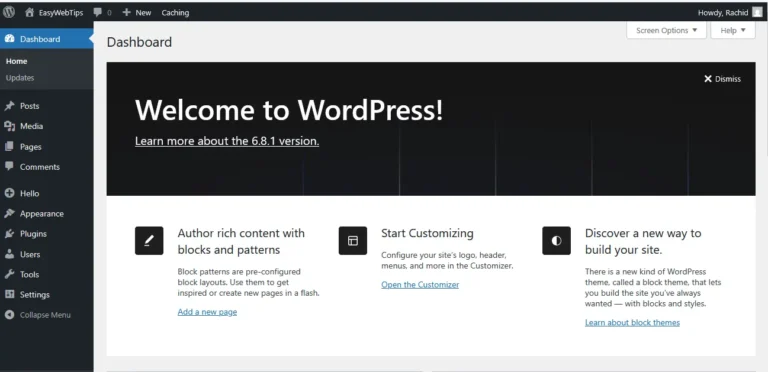
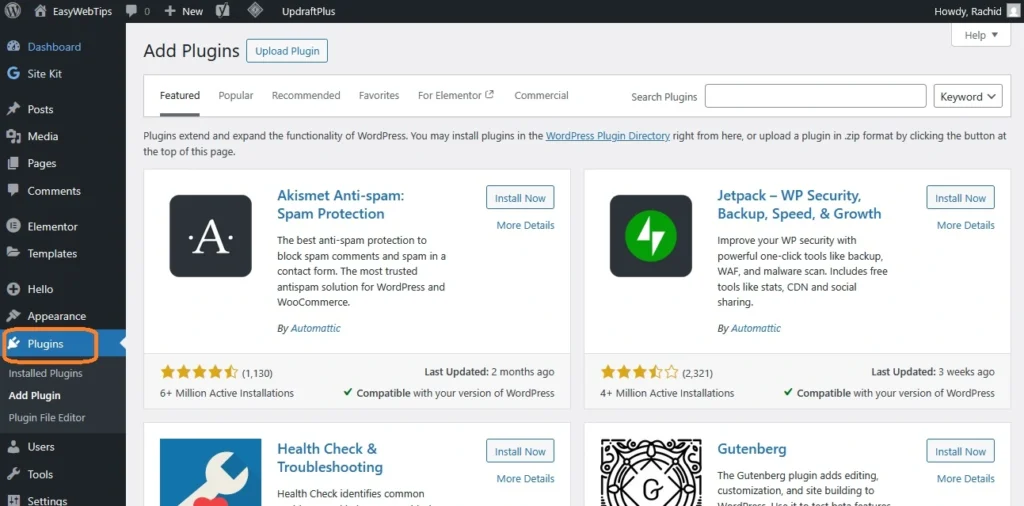
Log into your WordPress admin area (usually yoursite.com/wp-admin). Look for the “Plugins” menu item on the left sidebar – it’s your gateway to plugin paradise.
Step 2: Click "Add New"
Once you’re in the Plugins section, you’ll see an “Add New” button at the top. Click it like you mean it.
Step 3: Search for Your Plugin
Here’s where the magic happens. You can either:
- Browse featured plugins
- Search by keyword
- Upload a plugin file (more on this later)
Step 4: Install and Activate
Found your plugin? Great! Click “Install Now” and watch WordPress work its magic. Once installed, don’t forget to click “Activate” – it’s like buying a car but forgetting to turn on the engine.
Method 2: Upload Via Admin Dashboard
Sometimes you’ll find plugins that aren’t in the official WordPress repository. Maybe you bought a premium plugin, or a developer friend created something custom for you.
Step 1: Get Your Plugin File
Make sure you have the plugin as a .zip file. Don’t extract it – WordPress likes its plugins zipped up and ready to go.
Step 2: Navigate to Add New Plugin
Follow the same path as Method 1, but instead of searching, look for the “Upload Plugin” button at the top of the page.
Step 3: Upload and Install
Click “Choose File,” select your .zip file, and hit “Install Now.” WordPress will handle the rest like a digital butler.
Method 3: FTP Upload (For the Adventurous)
This method is like taking the scenic route – more complex but sometimes necessary. You’ll need FTP access to your website’s files.
Step 1: Extract Your Plugin
Unlike the previous methods, you’ll need to unzip your plugin file first.
Step 2: Connect Via FTP
Using an FTP client (like Core FTP LE, FileZilla…etc), connect to your website’s server. Navigate to the /wp-content/plugins/ folder.
Step 3: Upload Plugin Folder
Drag and drop your extracted plugin folder into the plugins directory. Then head back to your WordPress dashboard to activate it.
Plugin Installation Best Practices
Now that you know how to install plugins, let me share some wisdom I’ve gathered from years of WordPress tinkering (and occasional mishaps).
Research Before You Install
Not all plugins are created equal. Some are digital gold, others are… Well, let’s just say they’re not. Before installing any plugin, check:
- User reviews and ratings
- Last updated date (avoid plugins that haven’t been updated in over a year)
- Active installations (popular plugins tend to be more reliable)
- WordPress version compatibility
The One-at-a-Time Rule
I learned this the hard way. Installing multiple plugins simultaneously is like eating five different cuisines at once – you won’t know which one made you sick if something goes wrong. Install one plugin, test it, then move to the next.
Keep Your Plugins Updated
Outdated plugins are like leaving your front door unlocked. They’re security vulnerabilities waiting to be exploited. Enable automatic updates when possible, or check regularly for updates.
Common Plugin Installation Issues (And How to Fix Them)
Even the smoothest installations can hit bumps. Here are the most common issues and their solutions:
Memory Limit Errors
Problem: Your hosting provider has set memory limits that prevent plugin installation.
Solution: Contact your hosting provider to increase the memory limit, or add this line to your wp-config.php file:
ini_set(‘memory_limit’, ‘256M’);
File Permission Issues
Problem: WordPress can’t write files to your server.
Solution: Check your file permissions. The plugins folder should typically have 755 permissions.
Plugin Conflicts
Problem: Your new plugin doesn’t play nice with existing ones.
Solution: Deactivate all plugins, then reactivate them one by one to identify the troublemaker.
Essential Plugins Every Beginner Should Consider
While I could write a novel about amazing plugins, here are the absolute must-haves for beginners:
Plugin Category | Recommended Plugin | Why You Need It |
SEO | Yoast SEO | Optimizes your content for search engines |
Security | Wordfence | Protects against malware and attacks |
Backup | UpdraftPlus | Automatically backs up your site |
Caching | W3 Total Cache | Speeds up your website |
Contact Forms | Contact Form 7 | Lets visitors contact you easily |
SEO Optimization Plugins
Search engine optimization isn’t optional anymore – it’s like having a storefront without a sign. Plugins like Yoast SEO guide you through optimizing each post and page, making your content more discoverable.
Security Plugins
Think of security plugins as your website’s bodyguards. They monitor for suspicious activity, block malicious attempts, and keep your site safe from digital troublemakers.
Backup Solutions
Backups are like insurance – you hope you’ll never need them, but you’ll be grateful they exist if disaster strikes. Automated backup plugins run silently in the background, saving your bacon when things go wrong.
Plugin Management: Beyond Installation
Installing plugins is just the beginning. Managing them properly is where the real magic happens.
Regular Maintenance
Set aside time monthly to:
- Update plugins
- Remove unused ones
- Check for conflicts
- Review performance impact
Performance Monitoring
Too many plugins can slow down your website like carrying too many apps on an old phone. Use tools like GTmetrix or Google PageSpeed Insights to monitor your site’s performance.
Deactivation vs. Deletion
Deactivating a plugin turns it off but keeps its settings and data intact. Deleting removes it completely. When troubleshooting, start with deactivation.
Security Considerations
Plugin security isn’t just about choosing reputable plugins – it’s about ongoing vigilance.
Regular Updates
Developers constantly patch security vulnerabilities. Staying updated is your first line of defense against potential threats.
Source Verification
Only download plugins from:
- WordPress.org repository
- Reputable developers’ websites
- Trusted marketplaces like CodeCanyon
Permission Settings
Some plugins request extensive permissions. Read carefully and only grant what’s necessary for functionality.
Troubleshooting Common Issues
When plugins misbehave, don’t panic. Most issues have simple solutions.
White Screen of Death
This dramatic name describes when your site displays a blank white page. Often caused by plugin conflicts or PHP errors.
Solution: Access your site via FTP and rename the problematic plugin’s folder to deactivate it.
Plugin Won't Activate
Sometimes plugins refuse to activate, usually due to:
- Missing dependencies
- PHP version incompatibility
- Conflicting plugins
Solution: Check error logs and ensure all requirements are met.
Site Slowing Down
New plugins can impact performance. Monitor your site speed and deactivate resource-heavy plugins if necessary.
Advanced Plugin Tips
Once you’re comfortable with basic installation, these advanced tips will level up your plugin game:
Staging Environment Testing
Never test new plugins on your live site. Create a staging environment to experiment safely.
Plugin Customization
Many plugins offer hooks and filters for customization. Learn basic PHP to unlock advanced functionality.
Child Themes and Plugin Compatibility
Use child themes to prevent plugin conflicts during theme updates.
The Future of WordPress Plugins
The plugin ecosystem continues evolving. Block-based plugins are becoming more common, and AI-powered plugins are emerging to automate complex tasks.
Gutenberg Integration
Modern plugins increasingly integrate with WordPress’s block editor, offering more intuitive user experiences.
Performance Optimization
Developers are focusing on creating lighter, faster plugins that don’t compromise site speed.
Conclusion: Your Plugin Journey Starts Now
Installing WordPress plugins doesn’t have to be intimidating. Like learning to ride a bike, it seems scary until you actually do it. Then you wonder what all the fuss was about.
Remember, every WordPress expert started exactly where you are now. Take it one plugin at a time, test thoroughly, and don’t be afraid to experiment. Your website will thank you for it.
The beauty of WordPress lies in its flexibility, and plugins are the tools that unlock that potential. Whether you’re building a simple blog or a complex e-commerce site, there’s a plugin out there waiting to solve your specific challenge.
So go ahead – dive into that plugin repository and start transforming your website. Your future self (and your visitors) will thank you for taking this crucial step toward WordPress mastery.
Ready to supercharge your WordPress site? Start with one of the essential plugins mentioned above, and remember – every expert was once a beginner who wasn’t afraid to click “Install Now.”
What’s your biggest concern about installing WordPress plugins? Share your thoughts in the comments below, and let’s build a supportive community of WordPress learners together!