When you first begin building your dream website, it’s easy to overlook the media library. But over time, it can grow into a cluttered mess—filled with hundreds of random images named things like “IMG_4387.jpg” or “screenshot-2024-final-FINAL.png”, along with multiple size variations of each upload. Eventually, your website becomes bloated, and managing your media library turns into a nightmare—especially when you’re unsure which files are safe to delete.
Here’s the thing—managing WordPress media isn’t just about staying organized (though your future self will thank you). It’s about creating a website that loads faster, ranks better, and actually works the way you want it to. Today, I’m going to walk you through everything you need to know about WordPress media management, from the basics to the ninja-level tricks.
Why WordPress Media Management Actually Matters
Before we dive into the how-to stuff, let’s talk about why this matters. I used to think media management was just for the super-organized types. Boy, was I wrong.
Speed is everything. Your website’s loading time can make or break your success. Google’s algorithm loves fast sites, and visitors bounce faster than a rubber ball if your pages take forever to load. Properly managed media files are often the difference between a zippy site and a sluggish one.
Storage costs money. Whether you’re on shared hosting or a premium plan, bloated media libraries eat up space and can push you into higher-tier plans faster than you’d like.
SEO benefits are real. Well-organized, properly named media files help search engines understand your content better. Plus, optimized images can bring traffic through image search results.
Getting Started: The WordPress Media Library Basics
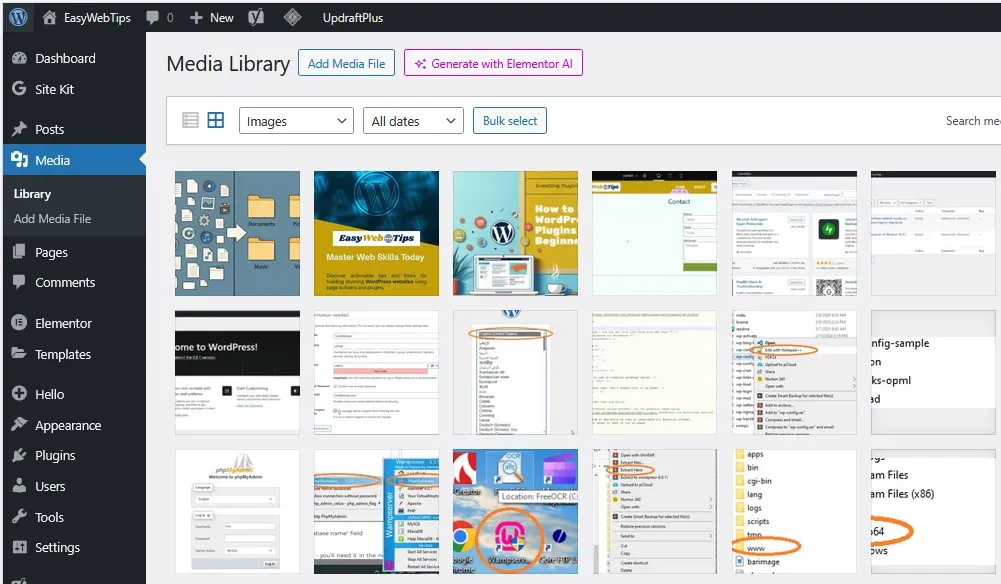
Let’s start with the foundation. The WordPress Media Library is your central hub for all things multimedia—images, videos, audio files, PDFs, you name it. You’ll find it in your WordPress dashboard under “Media.”
Understanding Your Media Library Interface
When you first open your Media Library, you’ll see two view options:
Grid View shows your media as thumbnails—perfect for visual browsing when you remember what something looks like but can’t recall the filename.
List View displays files in a table format with details like upload date, file size, and dimensions. This is my go-to when I’m hunting for that specific file I uploaded last month.
File Types WordPress Supports (And Some It Doesn't)
WordPress is pretty accommodating, but it has its limits. Here’s what you can upload without breaking a sweat:
Images: JPEG, PNG, GIF, WebP (in newer versions), ICO, SVG (with plugins)
Documents: PDF, DOC, DOCX, PPT, PPTX, XLS, XLSX, PPS, ODT, ODS, ODP
Audio: MP3, M4A, OGG, WAV
Video: MP4, M4V, MOV, WMV, AVI, MPG, OGV, 3GP, 3G2
Notice what’s missing? ZIP files, EXE files, and some other formats are blocked for security reasons. Smart move, WordPress.
Image Optimization: Making Your Pictures Work Harder
Here’s where things get interesting. Raw images from your camera or phone are usually massive—we’re talking 5MB or more for a single photo. Upload a dozen of those, and you’ve got a recipe for a slow website.
The Golden Rules of Image Optimization
Rule #1: Size matters. Your hero image doesn’t need to be 4000px wide. Most websites look great with images between 800-1200px wide for full-width displays.
Rule #2: Format wisely.
- JPEG for photographs and complex images
- PNG for graphics with transparency or text
- WebP for everything (if your hosting supports it)
- SVG for simple graphics and icons
Rule #3: Compress without compromising. You want the smallest file size that still looks good. It’s a balancing act, but tools make this easier.
Optimization Tools That Actually Work
TinyPNG is my personal favorite for quick compression. Drop your images in, download the compressed versions. Simple as that.
WordPress plugins like Smush, ShortPixel, or Optimole can automate this process. They compress images as you upload them and can even optimize your existing library.
Photoshop’s “Save for Web” feature gives you granular control over quality vs. file size.
The Lazy Loading Game-Changer
Lazy loading means images only load when visitors scroll down to see them. It’s like having a waiter who only brings your food when you’re ready to eat it—efficient and smart.
Most modern WordPress themes include lazy loading, but if yours doesn’t, plugins like Lazy Load by WP Rocket can add this functionality.
File Naming and Organization: Your Future Self Will Thank You
I learned this lesson the hard way. After building my first few websites with filenames like “image1.jpg” and “photo.png,” finding specific images became a nightmare. Don’t be like early-career me.
The Art of Descriptive File Names
Good: wedding-photographer-boston-ceremony.jpg Bad: IMG_2847.jpg
Good: red-velvet-cupcake-recipe-ingredients.png Bad: screenshot.png
See the difference? Descriptive filenames help you find images later and give search engines context about your content.
Folder Organization Strategies
WordPress doesn’t have built-in folder organization, but plugins like FileBird or WP Media Folder can create virtual folders. Here’s how I organize mine:
- Blog Posts (subdivided by month or topic)
- Product Images
- Team Photos
- Graphics and Icons
- Backgrounds
The key is consistency. Pick a system and stick with it.
Alt Text: The Unsung Hero of Accessibility and SEO
Alt text serves two masters: accessibility and SEO. Screen readers use alt text to describe images to visually impaired users, while search engines use it to understand image content.
Writing Great Alt Text:
- Be descriptive but concise
- Include relevant keywords naturally
- Don’t stuff keywords
- Skip phrases like “image of” or “picture of”
Example: Instead of “red car,” write “red 2023 Tesla Model 3 parked in modern driveway.”
Advanced WordPress Media Management Techniques
Ready to level up? These advanced techniques separate the pros from the beginners.
Custom Image Sizes for Different Needs
WordPress automatically creates several image sizes when you upload a file, but you might need custom dimensions. Add this to your theme’s functions.php file:
add_image_size(‘custom-large’, 1200, 800, true);
add_image_size(‘custom-thumbnail’, 300, 200, true);
Media Library Cleanup: Spring Cleaning Your Digital Life
Over time, your media library accumulates orphaned files—images you’ve uploaded but never used. Plugins like Media Cleaner scan your site and identify unused files.
Warning: Always backup before cleaning. Sometimes plugins miss file usage, and you don’t want to delete something important.
CDN Integration: Making Your Media Lightning Fast
A Content Delivery Network (CDN) stores copies of your media files on servers worldwide. When someone visits your site, they get images from the closest server. It’s like having local warehouses for faster delivery.
Popular CDN options:
- Cloudflare (free tier available)
- MaxCDN (now StackPath)
- Amazon CloudFront
- KeyCDN
Video and Audio: Beyond Just Images
Media isn’t just about pretty pictures. Videos and audio files need special attention.
Video Best Practices
Don’t upload massive video files directly to WordPress. Your hosting provider will not be happy. Instead:
- Use YouTube or Vimeo for hosting, then embed
- Compress videos before uploading if you must host them yourself
- Consider video-specific CDNs like Wistia for professional needs
Audio File Management
Podcasters and musicians, this one’s for you. WordPress handles audio files reasonably well, but consider:
- MP3 format for universal compatibility
- Reasonable bitrates (128kbps is usually fine for voice, 320kbps for music)
- Proper metadata (title, artist, album info)
Creating Audio and Video Playlists
WordPress has built-in playlist functionality. Select multiple audio or video files in your media library, and you’ll see an option to create a playlist. It’s surprisingly elegant for something so simple.
Security Considerations: Protecting Your Media
Media files can be security vulnerabilities if not handled properly. Here’s how to stay safe:
File Upload Restrictions
Never allow unlimited file uploads. Set reasonable limits:
- File size limits (usually 2-10MB for images)
- File type restrictions (only allow necessary formats)
- User permission controls (not everyone needs upload access)
Protecting Sensitive Media
Sometimes you’ll have files that shouldn’t be publicly accessible—client documents, private photos, etc. Consider:
- Private folders outside your web directory
- Password-protected content using membership plugins
Time-limited access links for temporary sharing
Performance Optimization: Making Everything Faster
Your media management strategy directly impacts site performance. Here’s how to squeeze every millisecond of speed:
Image Format Comparison Table
Format | Best For | Pros | Cons | Typical File Size |
JPEG | Photos, complex images | Small file size, universal support | Lossy compression, no transparency | 50-200KB |
PNG | Graphics, text, transparency needed | Lossless, supports transparency | Larger file sizes | 100-500KB |
WebP | Everything (modern browsers) | Excellent compression, quality | Limited older browser support | 30-150KB |
SVG | Simple graphics, icons | Scalable, tiny file sizes | Not suitable for photos | 1-50KB |
Database Optimization
Your media library data lives in your WordPress database. Over time, this can get bloated with:
- Unused image sizes
- Orphaned metadata
- Plugin remnants
Database optimization plugins like WP-Optimize can clean these up automatically.
Monitoring Your Media Performance
Keep an eye on:
- Total media library size
- Monthly bandwidth usage
- Page load times
- Image optimization ratios
Tools like GTmetrix, PageSpeed Insights, and Pingdom help track these metrics.
Troubleshooting Common Media Issues
Even with perfect management, things sometimes go wrong. Here are the most common issues and fixes:
"HTTP Error" When Uploading
This generic error usually means:
- File too large – Check your upload limits
- Memory issues – Contact your host about PHP memory limits
- File permission problems – Usually needs host intervention
Images Not Displaying Properly
When images show as broken links:
- Check file paths – Did you move files around?
- Verify permissions – Can the web server access the files?
- Look for plugin conflicts – Deactivate plugins one by one to test
Media Library Loading Slowly
Large media libraries can become sluggish:
- Paginate results – Show fewer items per page
- Use list view instead of grid view for faster loading
- Consider archiving old media to a separate location
Frequently Asked Questions
How often should I clean up my media library?
I recommend a monthly review for active sites, quarterly for less active ones. Set a calendar reminder—your future self will appreciate the organization.
Can I recover deleted media files?
If you have backups, yes. If not, deleted is usually deleted. This is why I always recommend backing up before major cleanups.
What's the ideal image file size for web use?
For most websites, aim for 100-200KB per image. Hero images can be larger (up to 500KB), but anything over 1MB is usually overkill.
Should I use WordPress's built-in image editor?
It’s fine for basic crops and rotations, but for serious editing, use dedicated software like Photoshop, GIMP, or online tools like Canva.
How do I bulk optimize existing images?
Plugins like Smush, ShortPixel, or EWWW Image Optimizer can process your entire existing library. Just start the process and let it run—it might take a while for large libraries.
The WordPress Media Management Action Plan
Ready to transform your media chaos into organized bliss? Here’s your step-by-step action plan:
Week 1: Assessment and Cleanup
- Audit your current media library
- Identify unused files using a cleanup plugin
- Backup everything before making changes
- Delete truly unnecessary files
Week 2: Organization and Optimization
- Install a media organization plugin
- Create your folder structure
- Rename files with descriptive names
- Add proper alt text to important images
Week 3: Optimization and Performance
- Set up image compression (plugin or manual process)
- Implement lazy loading if not already active
- Test your site speed and document improvements
- Consider CDN setup for high-traffic sites
Week 4: Maintenance Systems
- Create upload guidelines for yourself or team members
- Set up monitoring for file sizes and performance
- Schedule regular maintenance reminders
- Document your process for consistency
Wrapping Up: Your Media Management Success Story
Managing WordPress media might not be the most exciting part of website building, but it’s one of the most impactful. Think of it as the foundation of your digital house—get it right, and everything else becomes easier.
The strategies we’ve covered today will:
- Speed up your website and improve user experience
- Boost your SEO through proper optimization and organization
- Save you time when looking for specific files
- Reduce hosting costs through efficient file management
- Improve accessibility with proper alt text and organization
Remember, media management isn’t a one-time task—it’s an ongoing practice. But with the right systems in place, it becomes second nature.
Your website visitors will thank you with longer visits and better engagement. Search engines will reward you with better rankings. And you’ll thank yourself every time you find exactly what you’re looking for in seconds instead of minutes.
Ready to transform your WordPress media library? Start with one small step today. Pick five images in your library and give them descriptive names and proper alt text. Then build from there. Before you know it, you’ll have a media library that works as hard as you do.
What’s your biggest WordPress media management challenge? Drop a comment below and let’s solve it together.